


GIF Maker, Video to GIF Editor
4.4832.00 Reviews
App Specs
- Version
- 2.0.4
- Updated On
- License
- Free
- Downloads
- 5,000,000+
- Developer
- Galaxy studio apps
- Categories
- Photography
- Platform
- Android, iOS
Screenshots
 Analysis by AppCompare
If you've ever found yourself wanting to capture a moment from a video and turn it into a looping masterpiece, then you might want to check out GIF Maker, Video to GIF Editor. This app is designed to make the process of creating GIFs from your favorite videos as seamless and fun as possible. Let’s dive into what makes this app tick.
Choosing a GIF maker that fits your routine
Before settling on any GIF maker, I’d think about what you actually want to do with the result. A quick reaction image for a group chat has different needs from a carefully trimmed animation for a work presentation. If your main goal is to pull a short moment from a video, make a few adjustments, and share it without learning a complicated editing workflow, this app is an approachable place to start.
It is a free photography app from Galaxy studio apps, with an Everyone age rating and a 4.6 average from around 49,000 ratings. It has passed a million installs, which suggests it has found an audience among people looking for a straightforward way to make GIFs. The current version is 2.0.3, and it runs on Android 5.0 and up. Those details make it easy to judge whether it suits your device and expectations, but the more important question is whether its editing approach matches your habits.
I find the basic appeal clearest when I already have a video and know which moment I want to reuse. Rather than building an animation frame by frame, I can think in terms of a source clip, a selected section, and a few finishing choices. That is a useful distinction: people who enjoy drawing or assembling images individually may prefer a dedicated animation tool, while someone turning a funny reaction or a pet’s brief expression into a loop will likely appreciate a video-first workflow.
First Impressions
From the moment I launched the app, I was struck by its clean and intuitive design. The interface is user-friendly, making it a breeze even for those who are not tech-savvy. It’s like the developers knew exactly what we needed—no fluff, just straight to the point.
That directness matters most when you are making something on the fly. Imagine a friend sends a video in a chat, and there is a tiny, perfectly timed expression near the middle. You want to keep that reaction as a GIF before the conversation moves on. A simple layout helps you focus on finding the moment rather than hunting through layers of controls. I would still take a moment to preview the selected section before sharing; a loop can feel very different when the beginning and end do not join naturally.
Making a GIF and deciding what to keep
I’d use this section to focus on the small editing choices that make a GIF feel intentional: where the action begins, how much context it needs, and whether the ending loops cleanly. A useful habit is to preview the result at its likely sharing size, since a detail that looks clear while editing may disappear on a phone screen. That quick check helps decide what to keep before moving on to the app’s broader editing options.
Worth Reading Before You Choose

EA SPORTS FC Mobile 26 Is a Bigger Football Game, but It Takes Time

Flipboard Shows What News Apps Must Do Beyond the Feed

Switching to Android Auto Means Rethinking Your Driving Routine

Google Calendar Makes a Crowded Week Easier to Manage

Ludo King Makes the Most of the Minutes Between Plans

Baby Panda World Brings Quick Play to Modern Phones, but Its Game Library Feels Busy
Features Galore
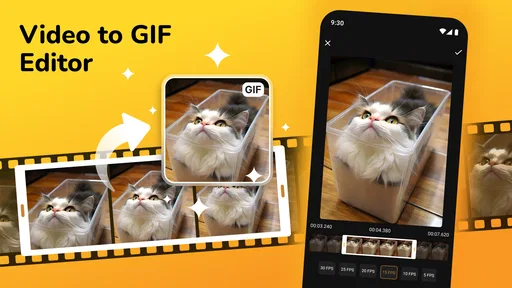
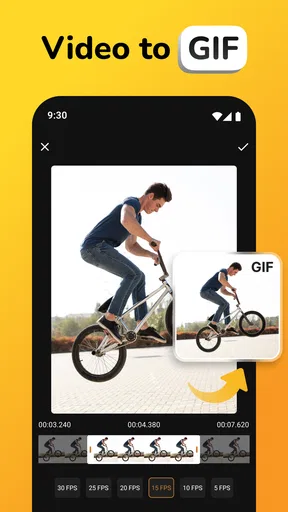
One of the standout features is the ability to convert video clips into GIFs effortlessly. You simply select a video, choose the segment you want, and voilà! You've got yourself a GIF. The app supports a variety of video formats, ensuring that you won’t run into any annoying compatibility issues.
For a better result, I’d treat trimming as the creative decision, not just a setup step. A short moment with one clear action usually communicates better than a long excerpt that tries to preserve an entire scene. For example, if I’m making a GIF of a dog jumping onto a sofa, I’d keep the lead-in and landing, but cut away the unrelated seconds before and after. That keeps the loop focused and makes it more useful in a message.
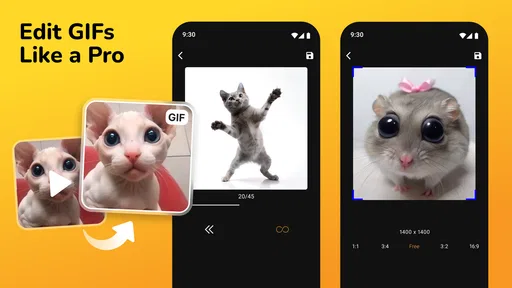
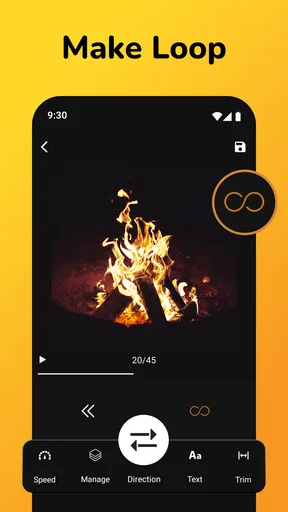
But that’s not all. The app also offers a suite of editing tools. You can adjust the speed of your GIF, add text, and even apply filters to give your GIFs a unique flair. It's these little touches that make the app feel like a mini studio in your pocket.
Speed changes are especially worth using with restraint. Slowing down a brief gesture can make the action easier to read, while speeding up a clip can create a playful effect. Either choice can also make a GIF feel less natural if pushed too far, so I’d compare the edited version with the original before deciding. Text is most helpful when the image alone might be unclear; a short label can give context, but too many words compete with the motion in a small looping image.
Filters are useful for bringing clips with different lighting closer together or giving a deliberately stylized look. They cannot rescue every source video, though. If the original is dark, shaky, or crowded, extra effects may make it harder to see what is happening. My practical advice is to make the trim work first, then add only the adjustments that improve the moment rather than decorating every GIF by default.
Performance and Usability
Speed is crucial when it comes to editing, and I was pleasantly surprised by how quickly the app processes videos. No one likes waiting around, and this app understands that. Plus, the quality of the GIFs is impressive, maintaining the clarity and vibrancy of the original video.
In everyday use, the source clip still sets the ceiling for the result. A sharp, well-lit recording gives the app more to work with than a clip that is already blurry or compressed. I’d also keep an eye on how much detail is moving in the frame: a simple close-up often reads cleanly, while a busy scene can become visually dense once it loops. If I’m unsure, I’d make a short test version and view it at the size where I plan to share it.
For those who love sharing their creations, the app provides easy options to share your GIFs directly to social media platforms or save them to your device. It’s perfect for anyone who wants to showcase their creativity to the world.
Saving first can be the safer workflow when a GIF matters beyond the moment. It gives you a copy to check before posting and lets you reuse it later without having to locate the original video again. I’d also choose the destination with the file’s purpose in mind: a reaction meant for a private chat does not need the same polish as an animation intended for a public post. The app’s straightforward creation path is convenient, but a final preview is still the best way to catch an awkward cut or text that appears too briefly.
Where it fits among other options
Compared with a full video editor, this app is the more focused choice when all I need is a short animated excerpt. A larger editor may be better if I want to combine several clips, build a longer sequence, or do detailed audio and timeline work before exporting. On the other hand, that broader toolkit can add steps that feel unnecessary when I simply want to isolate one moment and turn it into a shareable loop.
It also serves a different purpose from a frame-by-frame animation app. Those tools are a better fit for original drawings or precise control over each frame; this one is aimed at shaping existing video. If my source is a set of still photos rather than a clip, I’d first check whether a photo-based animation workflow is available in the tool I’m considering instead of assuming a video converter will handle that job in the way I want.
For occasional use, the direct conversion process is a real advantage. For frequent creators who need detailed control over typography, effects, timing, or layered compositions, a more advanced editor may be worth the extra learning. The right choice depends less on which app has the longest feature list and more on whether I want a quick conversion or a carefully constructed animation.
Who will get the most out of it
I’d recommend this app to someone who often spots short, expressive moments in videos and wants a low-friction way to turn them into GIFs. It could suit casual social sharing, a personal reaction collection, or simple visual demonstrations where a short repeating action explains more quickly than a still image. Because the workflow begins with video, it is also handy when the useful moment has several stages that a single screenshot would miss.
It is less compelling if you rarely make GIFs, prefer to draw animations yourself, or need a precise production workflow with extensive control over a finished sequence. It may also be the wrong choice when the source material needs substantial video repair before conversion. In those cases, editing the video elsewhere first—or using a specialized animation or video editor—may save frustration.
A small but useful habit is to keep the source video until you have checked the saved GIF in the app or destination where you plan to use it. That way, if the crop, timing, or text needs another pass, you can return to the original rather than trying to fix a finished animation. I’d also make the intended use clear before editing: a loop for a quick joke can be rough and spontaneous, while an instructional GIF benefits from a clean start, a readable action, and an ending that does not feel abrupt.
Cost and the cost of switching
The app is free to download, with in-app purchases ranging from $0.99 to $99.99 per item. I’d start with the free experience and decide whether the tools fit my actual use before spending anything. The purchase range is broad, so I would check the specific item and its terms inside the app rather than assume every editing option is included or that one purchase covers everything.
Switching to another tool is relatively easy if you have kept your original videos: you can bring the same source clip to a different editor and make a new version. The harder part is usually not moving the file but recreating a trim and set of edits you liked. When I make something I may want to revise, I’d note the useful start and end points or keep a copy of the source nearby. That small bit of organization makes experimentation less costly and avoids treating one app’s output as the only version I can ever use.
There is also a practical trade-off between speed and control. A focused converter can help me finish a simple GIF quickly, but if I repeatedly find myself wishing for more precise design options, the time saved at first may be offset by workarounds. I’d use that as the signal to compare alternatives, rather than switching just because another editor advertises a longer list of tools.
Why You’ll Love It
What really sets this app apart is its accessibility. Whether you're a seasoned GIF creator or someone just starting out, you’ll find it incredibly easy to use. The app strikes a balance between offering robust features and maintaining simplicity, which is no small feat.
Another highlight is the app’s community aspect. You can explore and get inspired by other users’ creations, adding a social element that keeps the experience fresh and engaging.
That inspiration can be useful when I want to try a different approach to a familiar source clip, though I’d still judge an idea by whether it suits the moment I’m editing. A GIF does not need elaborate treatment to work: timing, a clear subject, and a loop that feels intentional often matter more than piling on effects. For a beginner, that is a reassuring place to start; for an experienced creator, it can make the app a convenient option for quick drafts rather than a replacement for a more involved editing setup.
Room for Improvement
While the app is fantastic, there’s always room for improvement. One area that could be enhanced is the range of filters and effects. It’d be great to see more variety in future updates, allowing users to get even more creative with their GIFs.
Additionally, offering a few more customization options for text, like different fonts or animations, would take the app to the next level. But these are minor quibbles in an otherwise stellar app.
Those limitations matter most to people who treat text and visual styling as the main point of a GIF. If I need a distinctive branded look or careful typographic control, I would compare the result with an editor built for more detailed design before committing to this workflow. For everyday reactions and simple clips, the existing editing choices may be enough; for polished instructional or promotional material, I’d want to test whether the available customization matches the standard I need.
Final Thoughts
All in all, GIF Maker, Video to GIF Editor is a must-have for anyone looking to dive into the world of GIF creation. It’s packed with features that make the process easy and enjoyable, without overwhelming you with unnecessary complexity.
Whether you’re capturing a funny moment with friends or creating a short animated clip to share on social media, this app has got you covered. So, if you’re ready to let your creative juices flow, give this app a whirl. You won’t be disappointed!
My recommendation is strongest for people who want to turn existing video into a quick, expressive loop and value an uncomplicated route from clip to share. I’d try it before choosing a more complex editor if that describes your routine, while keeping expectations realistic about fine-grained design control. If your needs are more demanding, or you mainly want to create animation from scratch, another type of tool is likely to fit better. For a casual video-to-GIF workflow, though, this is a practical starting point that keeps the focus on the moment you want to preserve.
Pros
- Easy-to-use interface for beginners.
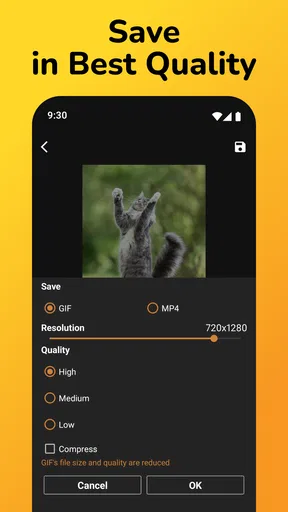
- High-quality GIF output settings.
- Supports various video formats.
- Includes editing tools like trimming.
- Quick export and sharing options.
Cons
- Limited free version features.
- Occasional ads disrupt workflow.
- Requires internet for full features.
- Some editing tools are basic.
- No batch processing capability.
FAQs for GIF Maker, Video to GIF Editor
What are the main features of the GIF Maker, Video to GIF Editor app?
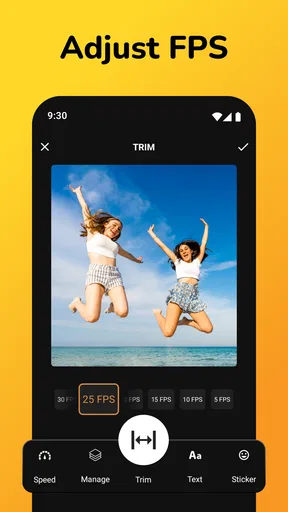
The GIF Maker, Video to GIF Editor app allows users to easily convert videos into GIFs, edit GIFs with a variety of tools, and add stickers or text. It supports multiple video formats and offers options to adjust frame rate, speed, and even reverse GIFs. These features make it a versatile tool for creating and customizing GIFs.
Is the GIF Maker, Video to GIF Editor app free to use?
The app is free to download and use, with basic features available to all users. However, there are in-app purchases and a premium version that unlock additional features, such as removing watermarks, accessing advanced editing tools, and an ad-free experience. Users can choose to upgrade based on their needs.
How user-friendly is the GIF Maker, Video to GIF Editor app for beginners?
The app is designed with a user-friendly interface that caters to both beginners and experienced users. It includes a step-by-step guide and intuitive controls, making it easy to navigate and use its features effectively. Even those new to GIF creation will find the app straightforward and accessible.
Can I share my created GIFs directly from the app?
Yes, the app provides direct sharing options, allowing users to instantly share their creations on social media platforms like Instagram, Facebook, and WhatsApp. Additionally, users can save their GIFs to their device's gallery or cloud storage, making it convenient to share with friends or use in other applications.
Does the app support high-resolution GIF creation?
The GIF Maker, Video to GIF Editor app supports high-resolution output, ensuring that your GIFs maintain quality and clarity. Users can choose from various resolution settings to suit their needs, whether they require a quick, low-resolution GIF for social media or a high-resolution version for professional use.


